Using the Timetable
The Timetable tab is the day-to-day view. It shows lessons, events, holidays, rooms, teachers, durations, and status labels.
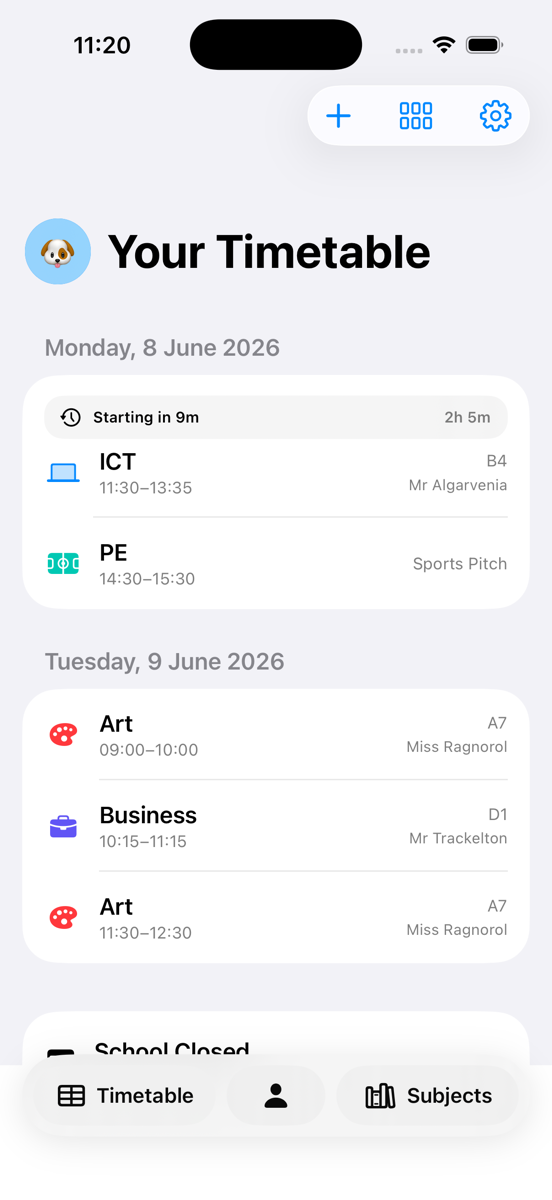
Navigate the timetable
- On iPhone, use the bottom tabs for Timetable, Profile, and Subjects.
- On iPad and Mac, use the sidebar to open Timetable, Subjects, or a specific subject.
- Tap the timetable header or profile switcher to move between My Timetable and shared profiles.
- Use Load next days or infinite scrolling to see more of the timetable.
- Use compact timetable view in Settings when you want denser day sections.
- Use grid view to inspect a week layout and share it as an image or PDF.
Open a daily summary
- Open the Timetable tab.
- Tap the daily summary area, or open a summary from a daily summary notification.
- Review today's lessons, events, rooms, teachers, and durations.
- Tap a lesson or event to open its detail screen.
- Check Parent Sync warnings if the app says a parent may have outdated timetable data.
Switch timetable profiles
- Open Timetable.
- Tap the active profile header or profile switcher.
- Choose My Timetable to edit your own data.
- Choose a parent or friend shared timetable to view it read-only.
- Tap Add Shared Timetable to enter a new invite code.
Shared profiles are read-only
Parent and friend timetables can be viewed from the profile switcher, but the owner edits the source timetable on their own device.