Widgets, Apple Watch, and Shortcuts
Widgets, Apple Watch, and App Shortcuts reuse the same timetable data from the main app. Open ClassConnect S after editing the timetable so these surfaces can refresh.
Add widgets
- Long-press the Home Screen or Lock Screen and open the widget gallery.
- Choose ClassConnect S.
- Add Next Lesson, Today's Schedule, or Lock Screen timetable widgets.
- Open the main app after editing the timetable so widget data refreshes.
Use Apple Watch
- Install or open ClassConnect S on Apple Watch.
- Keep the paired iPhone nearby and recently synced.
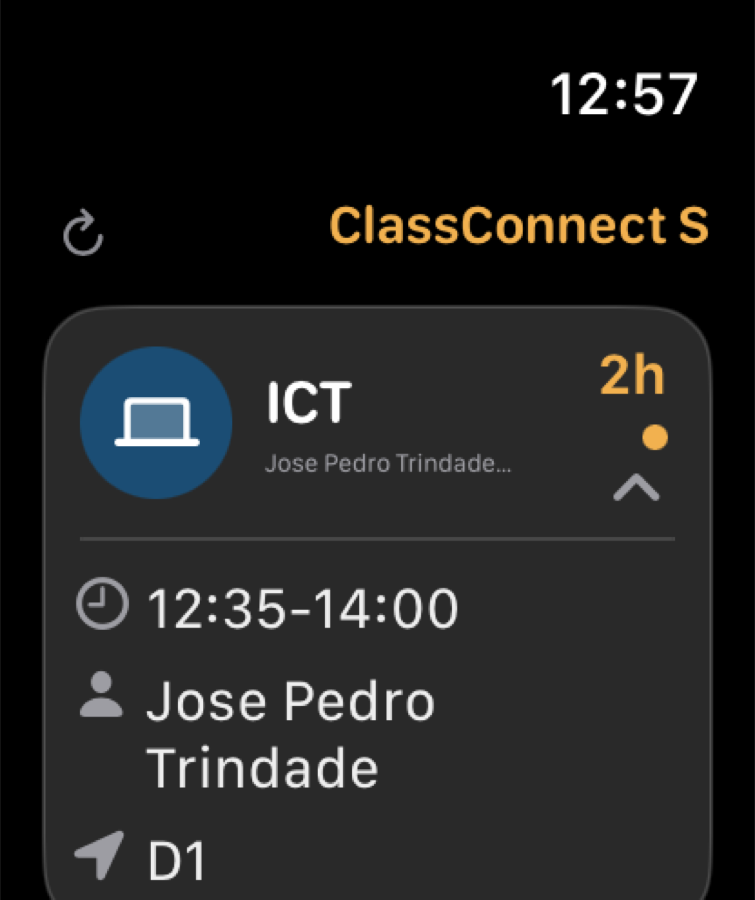
- View current or next lessons, rooms, teachers, and status.
- Use the Watch profile picker when parent or shared timetable profiles are available.
- Adjust Watch display options in Settings where available.
Use Siri and App Shortcuts
- Open the Shortcuts app or ask Siri for ClassConnect S actions.
- Use Get Today's Lessons to hear or receive a text summary for today.
- Use Get Next Lesson to hear or receive the next current or upcoming item.
- In Advanced Settings, choose whether shortcut responses include times, rooms, and teacher names.
Full Access
App Shortcuts are a Full Access feature in the current app policy.